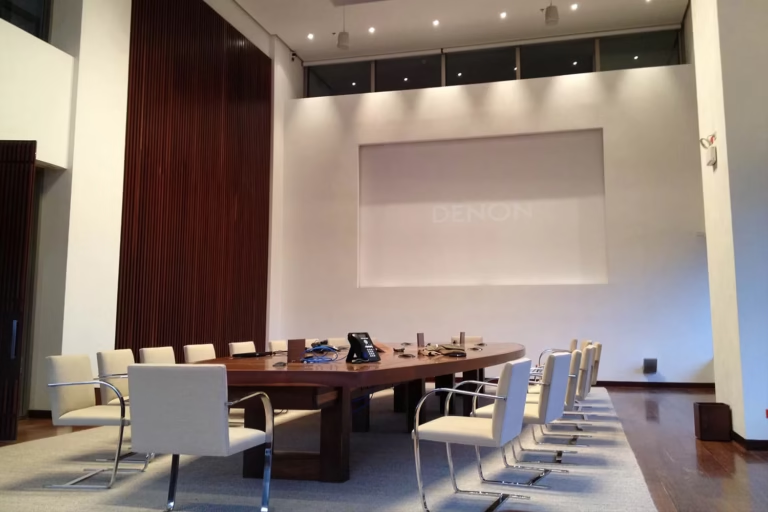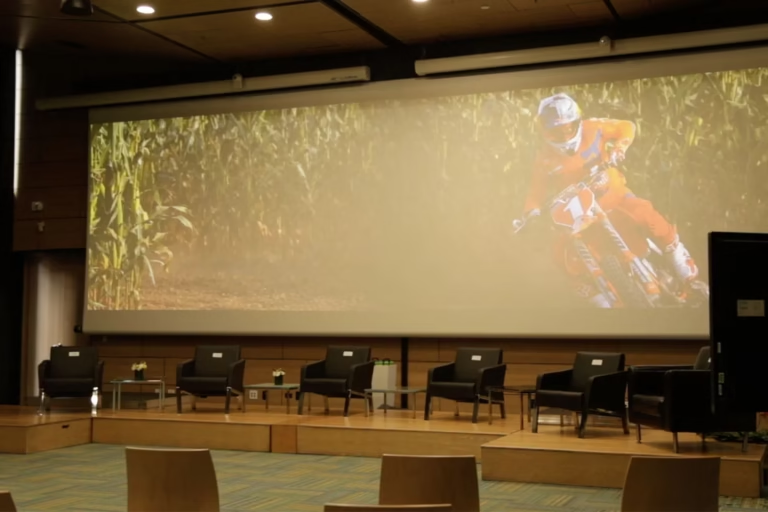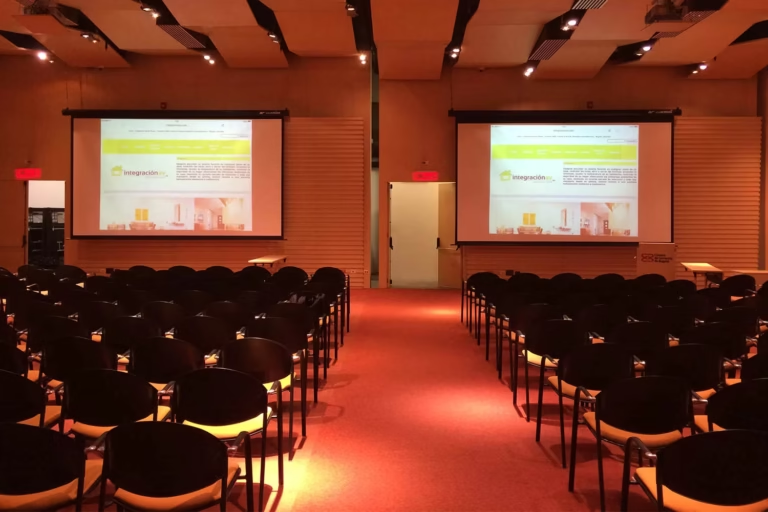
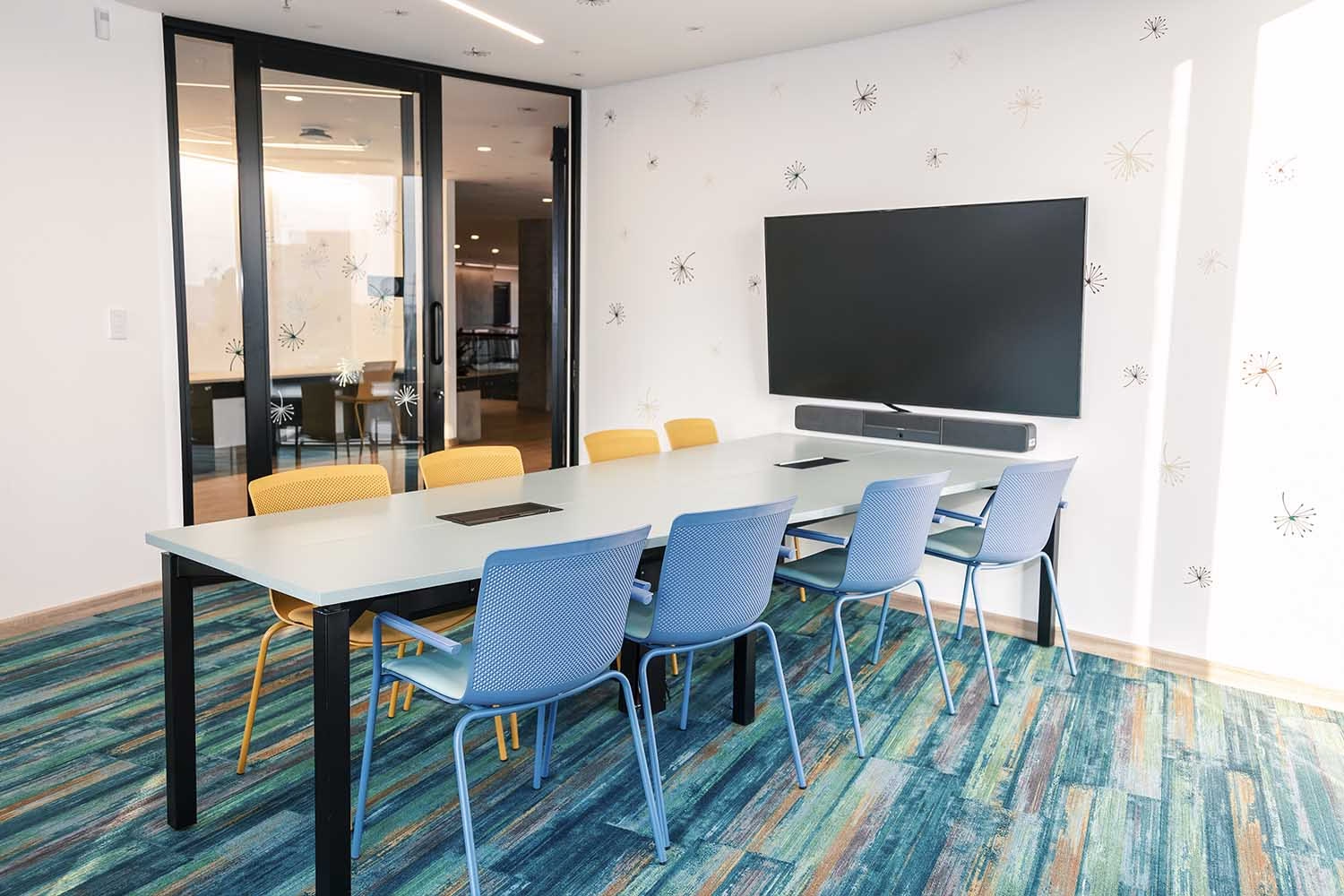
A room booking system lets you reserve a meeting room from the corporate calendar, from your phone, or from an entry screen at the door, and see in real time whether it’s free or occupied. When it’s integrated with the room’s automation, it also turns on the equipment when the meeting starts and shuts it down when it ends.
In companies with many rooms and many teams, booking by email or a shared spreadsheet leads to double-bookings, reserved rooms nobody uses, and meetings that start with people hunting for space. This guide explains how booking systems and entry screens work, and what’s needed to install them. Booking is one of the components of smart boardrooms and is also implemented as its own project.
What a booking screen is
It’s a touch screen installed at the entrance to each room. It shows whether the room is free or occupied, what meeting is underway, and the next available time slots. You can book on the spot from the same screen, with no need to go back to a computer or call anyone.
The screen doesn’t work alone: it reads from and writes to the corporate calendar. A booking made at the door shows up in email, and a meeting scheduled from email shows up at the door.
For someone arriving at a meeting, the screen confirms they’re in the right room. For someone looking for a free space, it avoids opening doors and interrupting meetings in progress.
How a room booking system works
- From the corporate calendar
- Users invite the room like another attendee, from Microsoft Outlook or Google Calendar, and see its availability before sending the invite.
- From the door
- The booking screen lets you reserve on the spot and shows the room’s status to anyone walking by.
- From a phone or the web
- An online interface to check availability and book from anywhere.
- Real-time status
- Availability updates across every channel at once, preventing two bookings for the same time slot.
- Recurring meetings and reminders
- Weekly or monthly committees are scheduled once, and attendees get reminders.
Integrated with the room’s automation
The system performs better when booking connects to the room’s control. When a booked meeting starts, the room turns on the screen, adjusts the lighting, and readies the video call; when it ends, it shuts the equipment down. The integration can also include lighting and climate control, which cuts consumption in rooms left running unused.
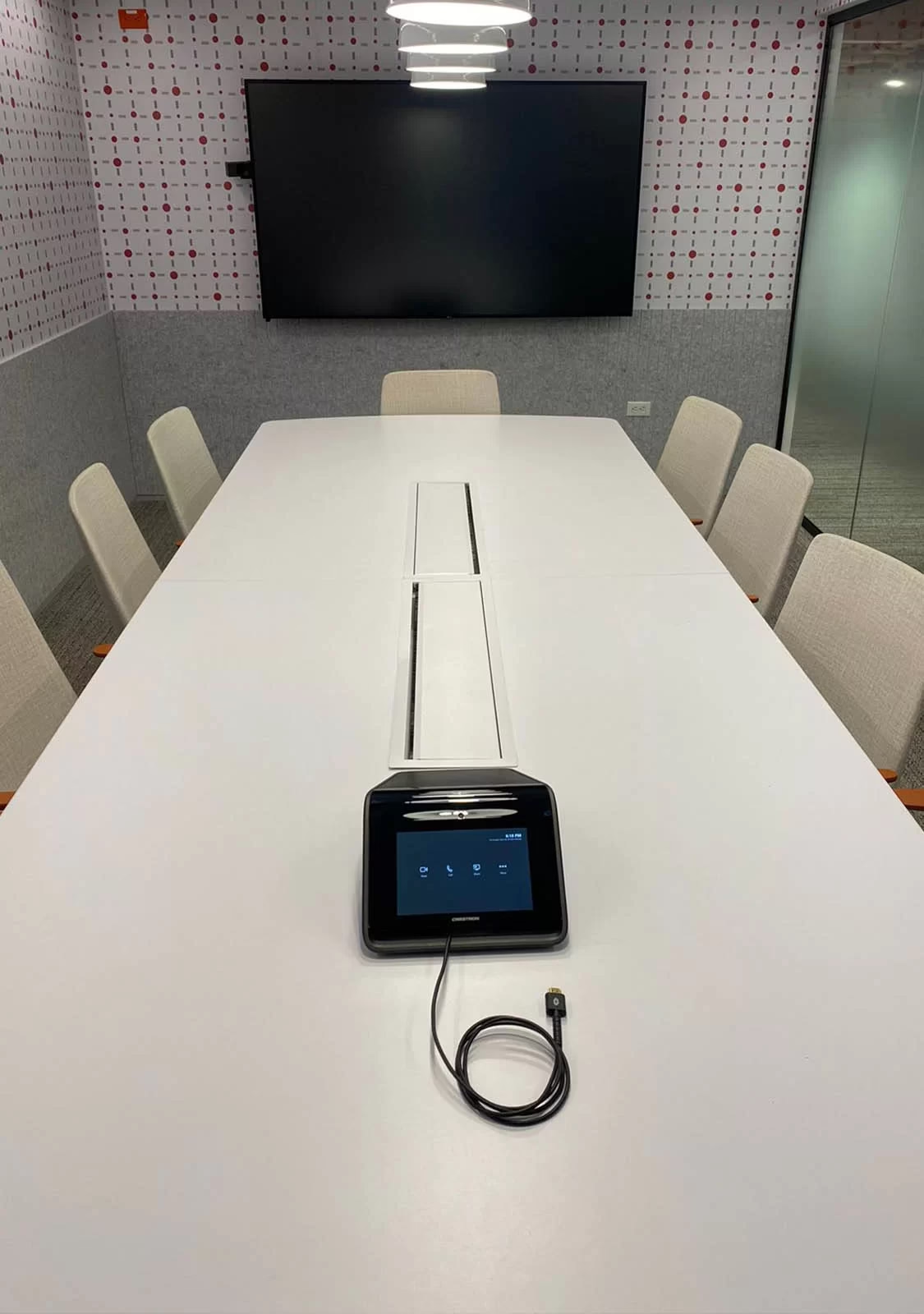
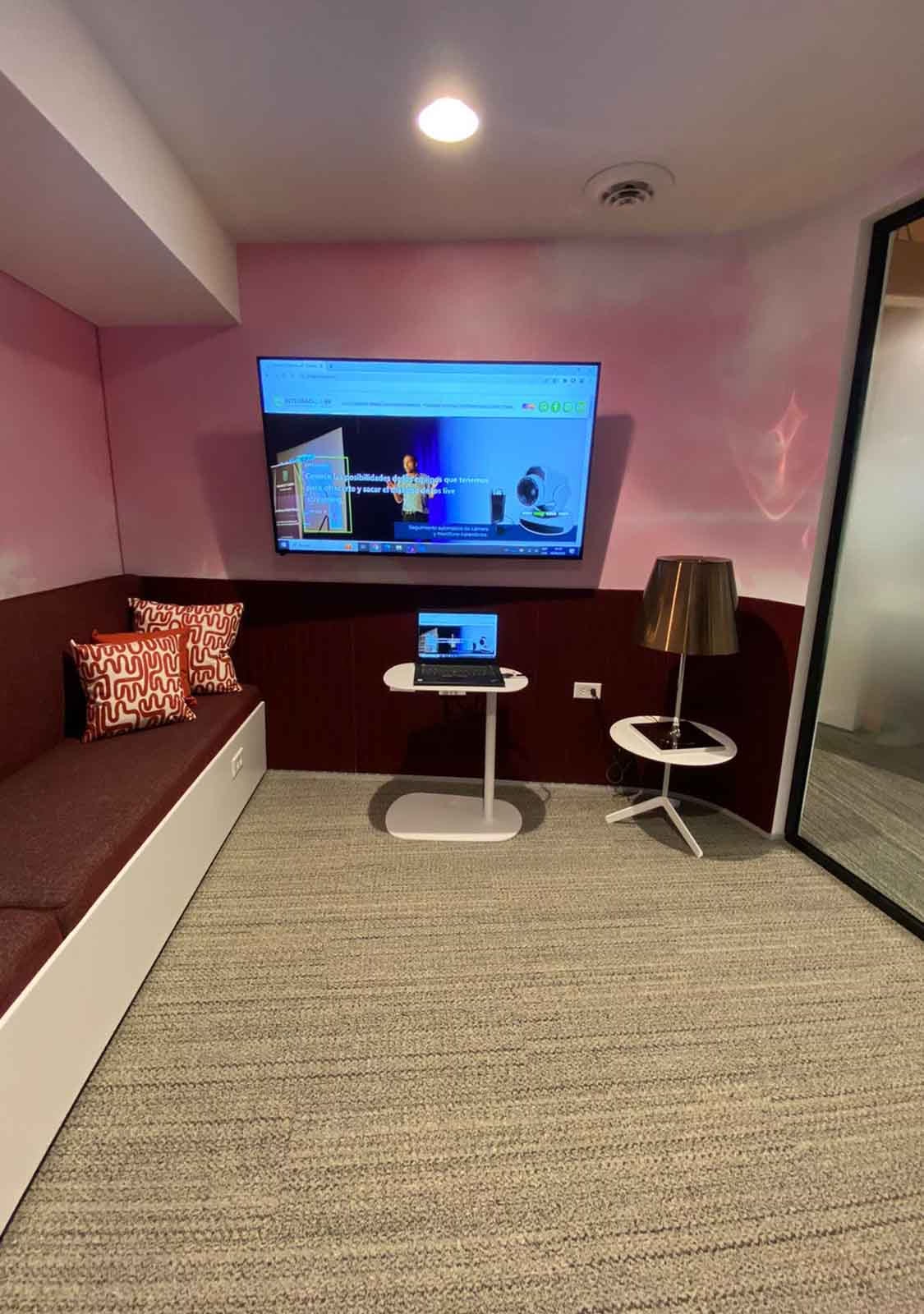
We work with Crestron scheduling systems, which integrate with the control platform we program into boardrooms. If the office already has Crestron automation, booking is added on top of that base. Each room is configured with its own schedule and usage rules, so the boardroom and a quick-meeting room can behave differently within the same system.
Rooms, auditoriums, classrooms, and desks
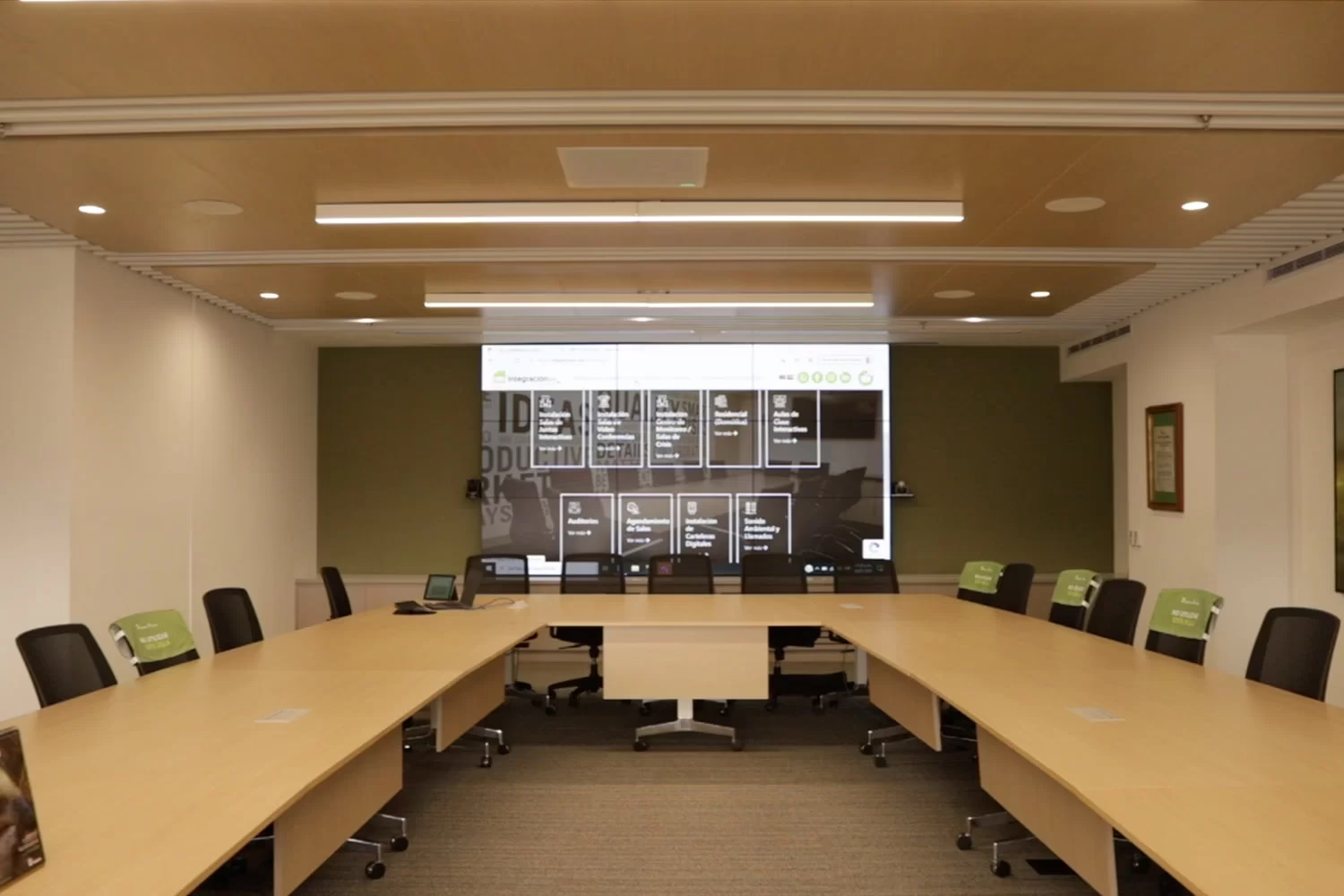
The same system works for any shared space: boardrooms, auditoriums, training rooms, and desks in offices with a hot-desking setup. Universities and schools use it to schedule classrooms and conference rooms, with entry screens showing each space’s timetable; see interactive classrooms and smart boards.
Usage data and access control
A booking system logs how spaces are used: which rooms are booked most and at what times. With those reports, the admin team can decide whether more rooms are needed, whether some are underused, or whether to resize them before a renovation.
It can also restrict certain rooms to authorized people, such as the boardroom, and show every room’s status in real time to whoever manages them.
Ways to book a room
| Email or shared spreadsheet | Corporate calendar | Integrated system with booking screen | |
|---|---|---|---|
| Where you book | By email, chat, or spreadsheet | In the email calendar | In the calendar, at the door, on a phone, or on the web |
| Status visible at the door | No | No | Yes, in real time |
| Double-bookings | Frequent | Less frequent | Avoided: every channel sees the same availability |
| Usage data | No | Limited | Reports by room and time slot |
| Room power-on and shutdown | Manual | Manual | Automatic if integrated with control |
What’s needed to implement it
- Space inventory
- How many rooms, auditoriums, or desks will be booked and which ones need a screen at the door.
- Email platform
- Whether the company uses Microsoft 365 or Google Workspace; the IT team enables the calendar connection.
- Network and power at each door
- Each booking screen is installed next to the entrance and needs a connection.
- Usage rules
- Who can book each room, how far in advance, and for how long.
With that, we design the system, install the screens, set up the calendar connection, program the integration with each room, and train users. The process for the full room is in smart boardroom installation.
Frequently asked questions about room booking
Does the booking system work with Outlook and Google Calendar?
Yes. It connects to the corporate calendar, so the room is booked the same way you invite a person. The company’s IT team enables the connection during implementation.
Can it be installed in rooms that are already in use?
Yes. The booking screen is installed next to the door and needs a network and power connection. If the room already has automation, it integrates with it; if not, it works as a standalone booking system.
Does it also work for desks?
Yes. The same system lets you book desks in hot-desking offices, in addition to rooms, auditoriums, and classrooms.
Organize Your Room Booking
Tell us how many rooms you have and what email platform your company uses. From there we propose the booking system and the integration with each room.
Request a Technical Consultation Message us on WhatsApp
Bogotá and Medellín · +57 301 656 9858